How to connect Azure Data Factory / Synapse Pipelines to Google BigQuery without losing your sanity over connection tokens
Table of Contents
When I talk about knowing the struggles with the Cloud (as I did recently at PASS 2022), I really mean it, and this is one example of it. This is the case of importing data from Google BigQuery to Azure ADLS v2 (but it can be anywhere else really) using Azure Synapse Pipelines (which is really Azure Data Factory in a different workspace); easy enough, the ugly part is always the authorization part, and in this case having to deal with REST API or JavaScript like those database-hoarding developers.
The process is rather easy, but nobody seems to be able to explain it clearly in a single place without having you to call APIs manually or similar, so here we are.
Prerequisites:
- Your network guys have already dealt with the connectivity between the two cloud services
- Your google user, which you’re logged in to, has already all the access rights to the objects you need, and it can create credentials
Step 1: Create a credential
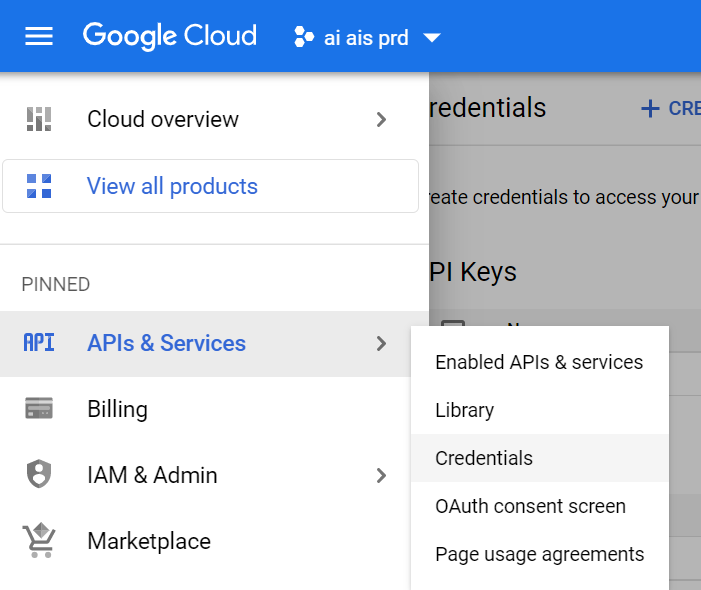
From the hamburger menu, select “API & Services” -> Credentials From this page, create a OAuth client ID:
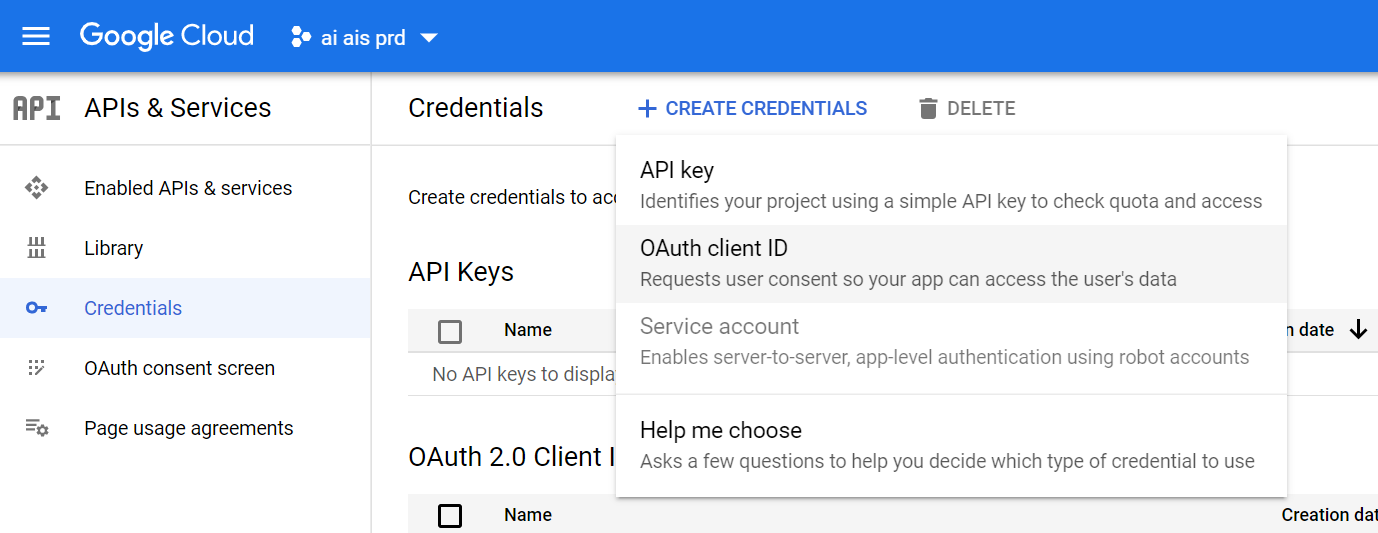
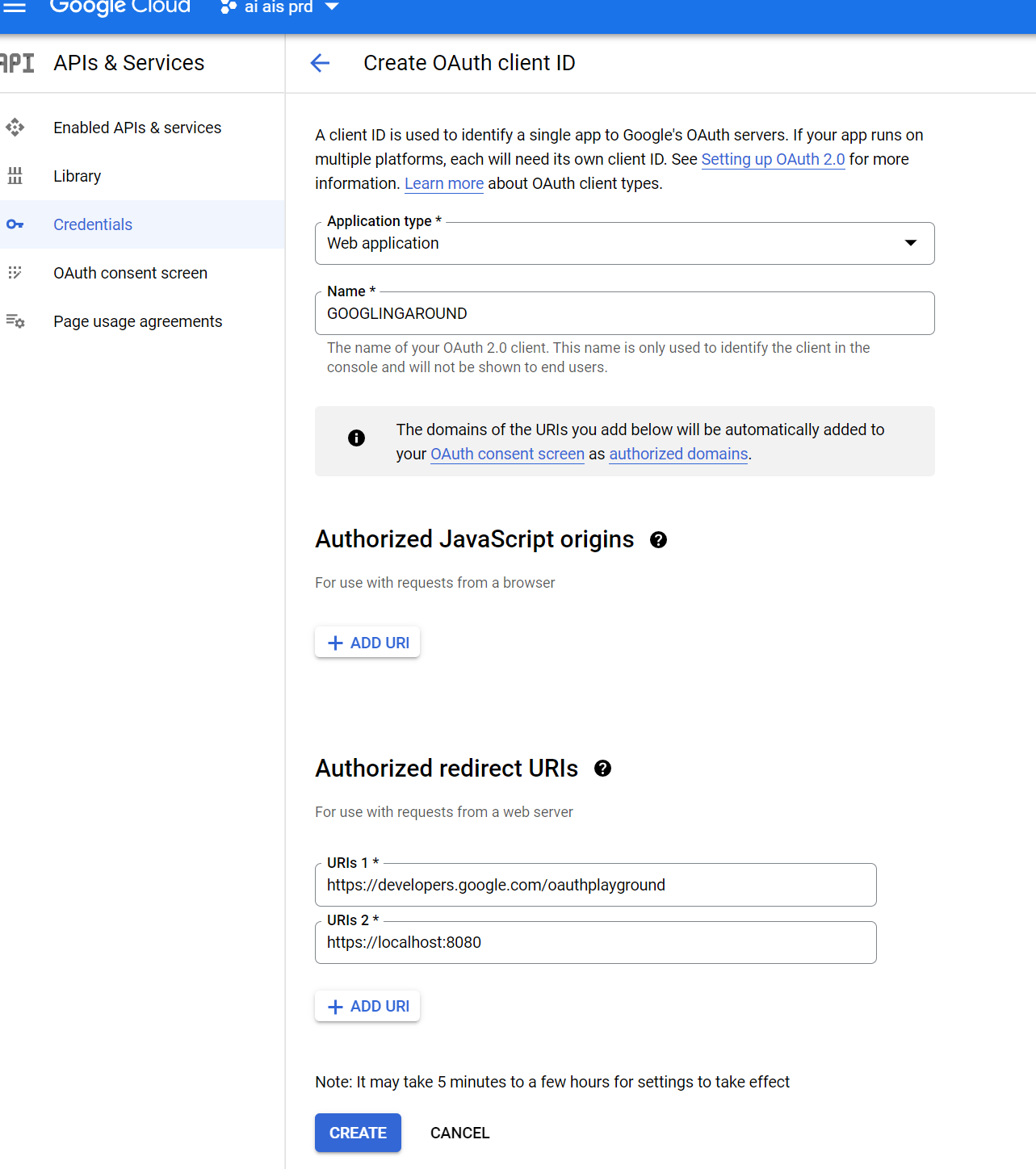
Now, give it a decent name and be sure to include the following as redirect URI:
- https://developers.google.com/oauthplayground
- https://localhost:8080
Now, after creating it and waiting 5 minutes for it to actually work, you should see two fields in the OAuth client page “Client ID” and “Client secret”, which of course are essential for what we’re going to do next:

Step 2: Create a Token
Ok now the weird part. Go to https://developers.google.com/oauthplayground
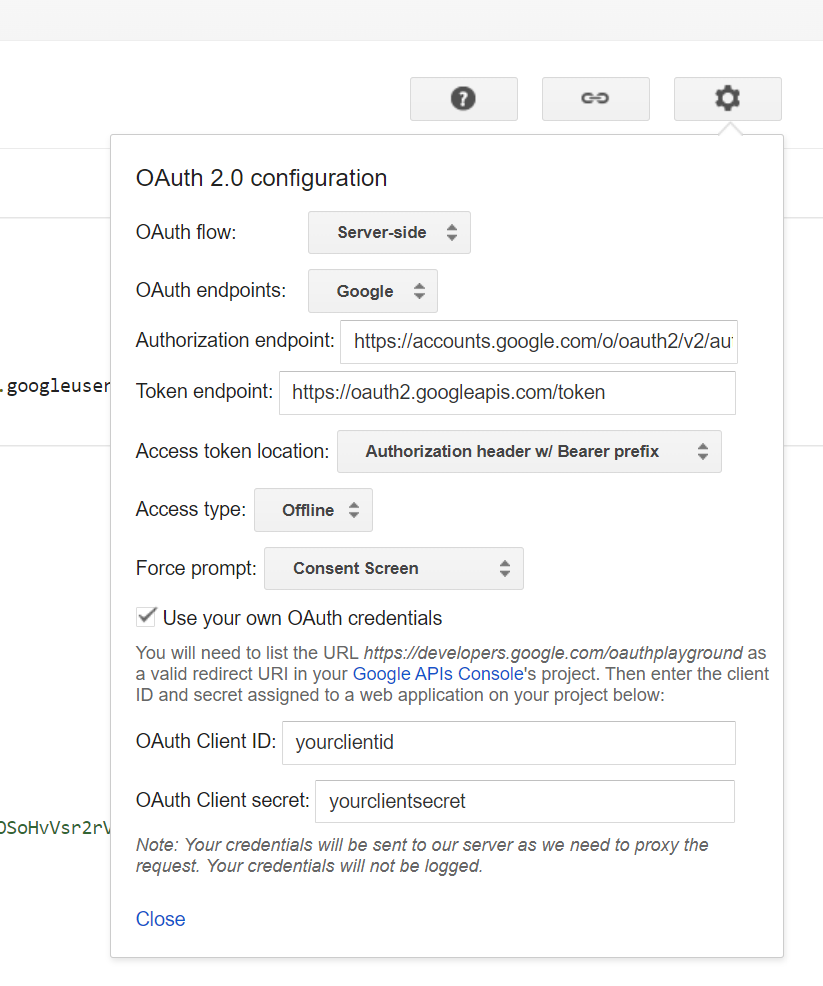
Important: in the upper right corner, click the gear and check “Use your own OAuth credentials”
Now, on the right, start with the Step 1 by selecting all the permissions you’re requiring, in this case we just need to read data from BigQuery, so the following should suffice:
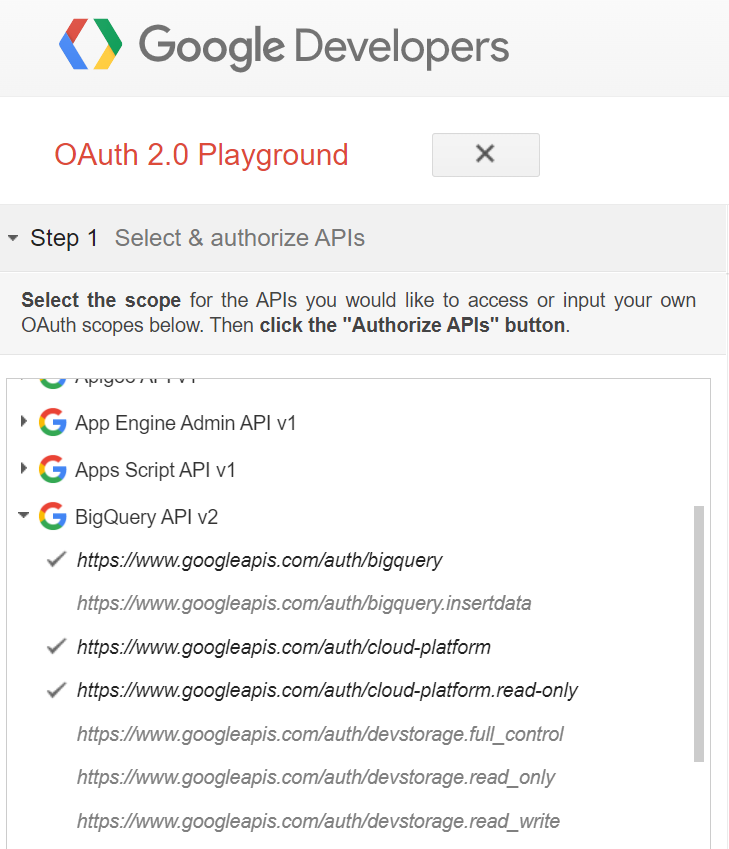
Note: If BigQuery includes contents from Google Drive (e.g. Google Sheets), then you should also enable the Drive API https://www.googleapis.com/auth/drive.readonly
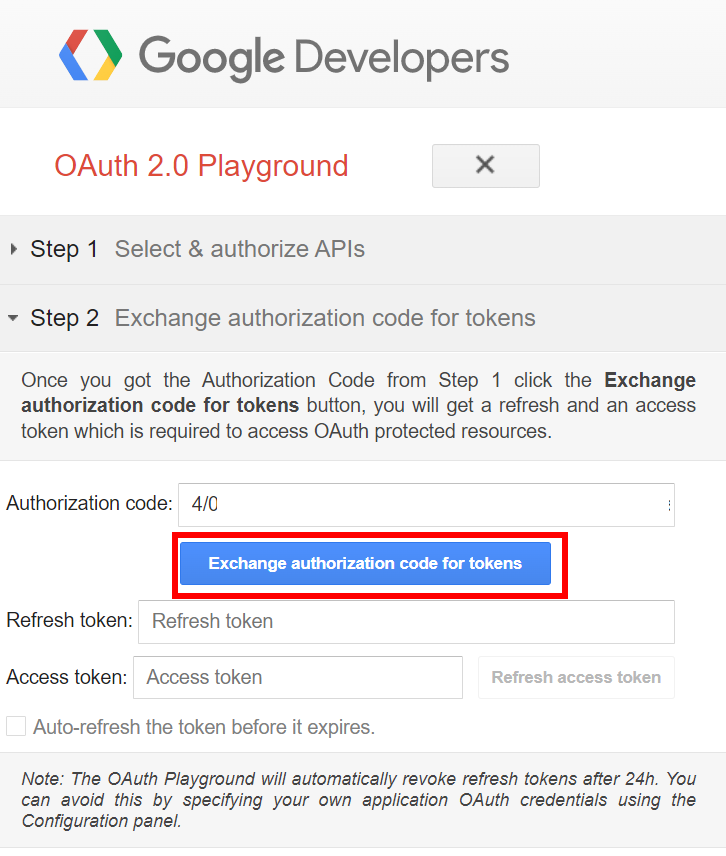
When pressing “Authorize API” you’ll be prompted to authorize the request, after doing so, you’ll advance to Step 2 automatically, at this point you just have to click on “Exchange authorization code for tokens”
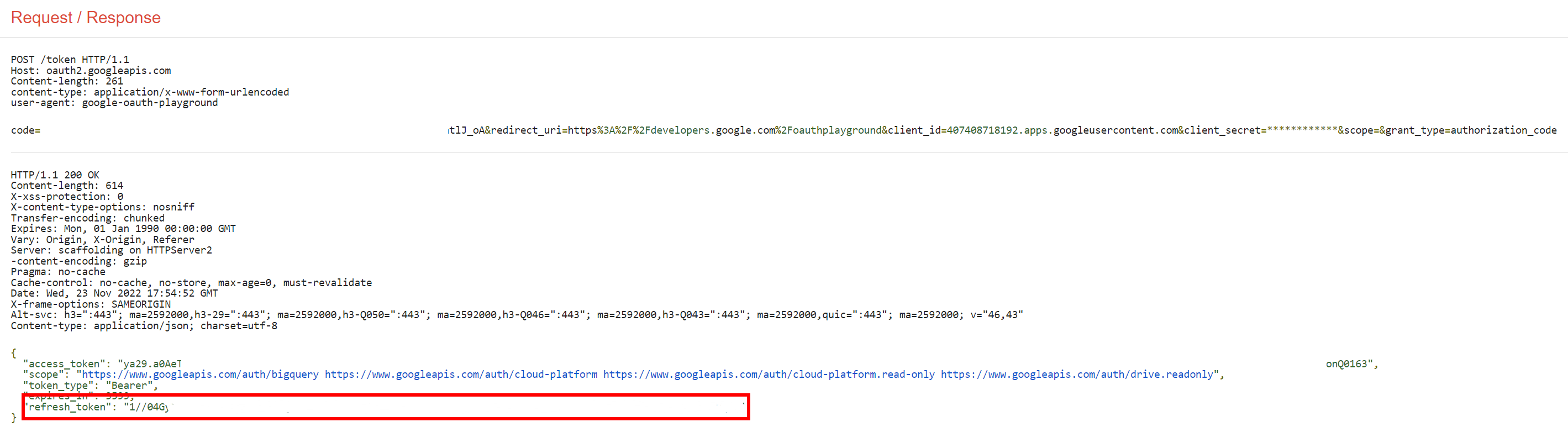
The response to this is exactly what we need, specifically, we’re interested in the refresh token:
Step 3: Create Linked Service
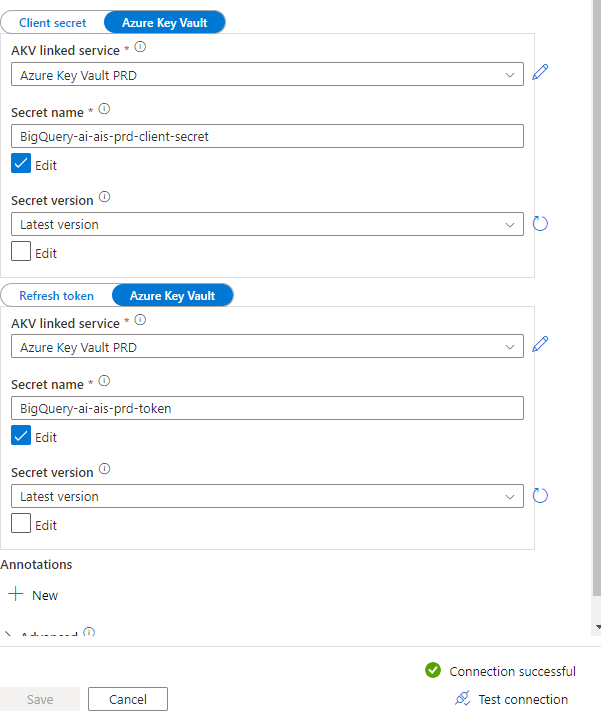
Finally, we have all the elements needed to connect to BigQuery throught ADF/Synapse! Just create a new linked service, and you should be able to put all the pieces we’ve gathered until now into the correct field:
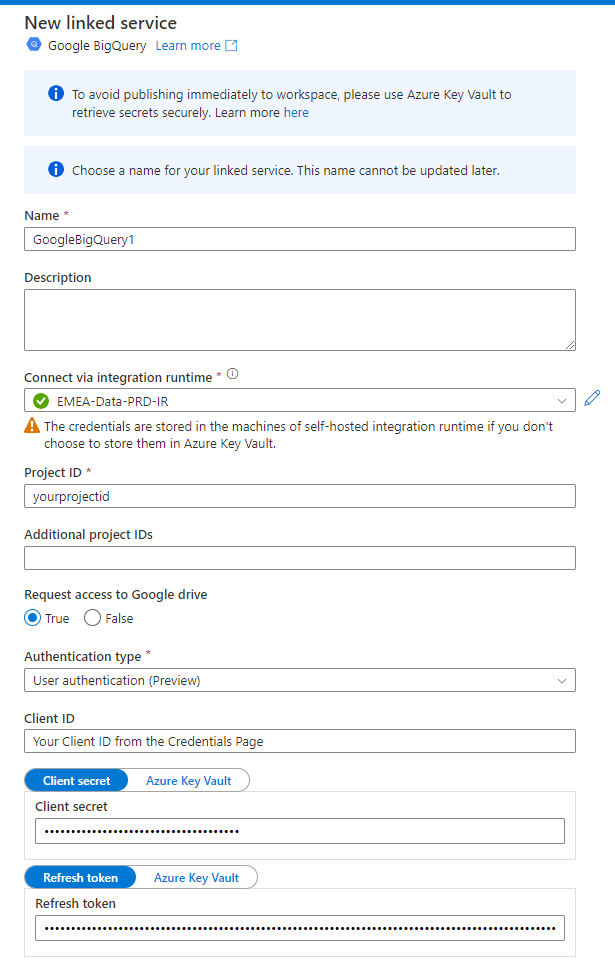
Of course, I (like Microsoft) recommend saving your Client Secret and Refresh Tokens in Azure Key Vault, as a safer way to manage your secure strings.
If you followed this thoroughly, you’ll get the satisfying “Connection Successful” green badge when testing the connection 😎
Now you can use this linked service to create Intergration Dataset and use it as a source, You’re welcome!